Creating and editing a Series
PrintLink helps you sell more books by bundling related titles into a series. Readers can add multiple books to their cart in one order, increasing sales per transaction. The ‘Add to Cart’ button next to ‘Buy Now’ makes it easy for customers to purchase an entire series in one click.
Carousel Display
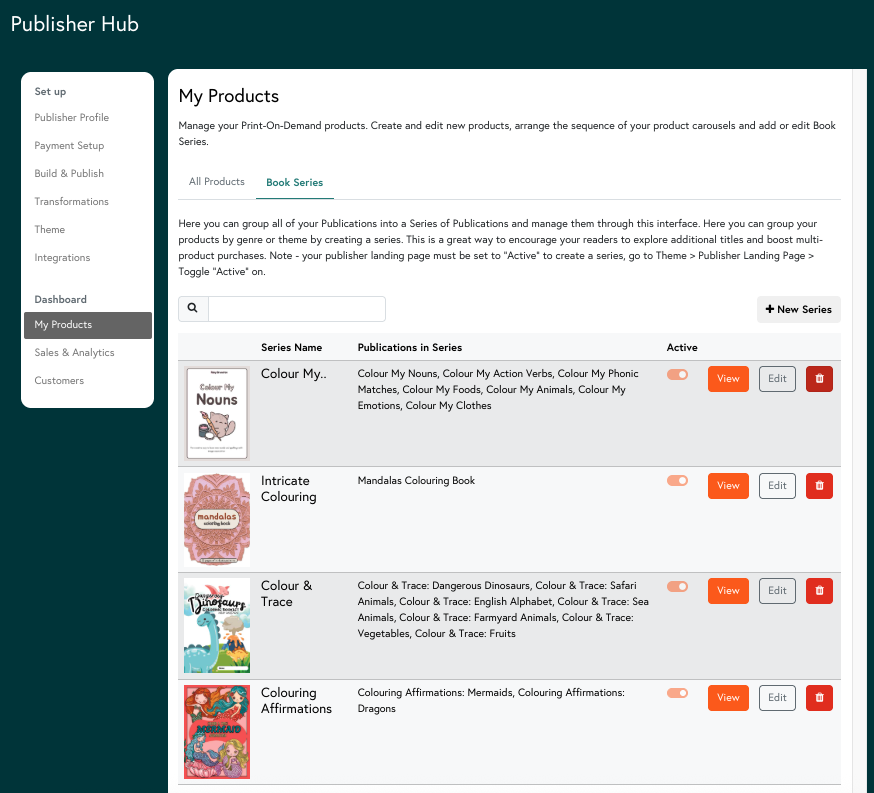
The PrintLink carousel feature automatically displays all your print-on-demand publications in one place, making it easy for readers to explore and discover more of your work. By showcasing multiple titles on every live publication page, the carousel increases visibility, encourages engagement, and helps drive more sales - especially for authors with a book series.
To create a series:
- Go to your Publisher Hub
- Click the ‘My Products’ tab
- Click the ‘Book Series’ tab
- Click ‘New Series’
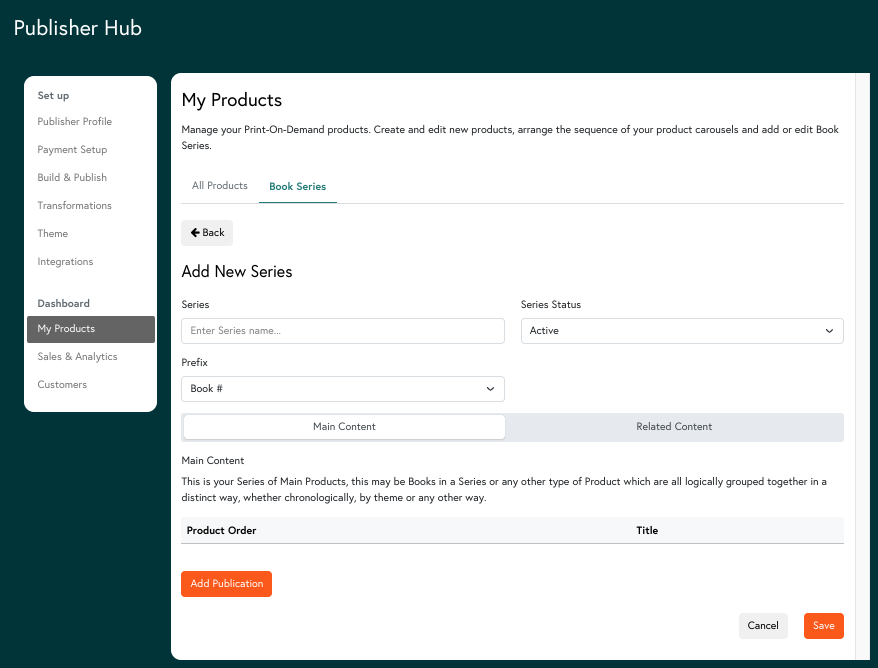
- Enter the name of your Series, select the series status and a prefix for each product in the series.
- Add products into your main or related content by clicking ‘Add product’.
- Select the relevant product to add from the pop-up then click ‘Save’
To delete a series
- Find the series you wish to delete from your series list
- Click the Delete button
- Confirm with ‘Delete’ in the pop-up window
To remove products from a series
- Find the series from which you wish to delete a product from your series list
- Click ‘Edit’
- Locate the product you wish to remove from the series and click the 'Delete’ button on the relevant product line.
Genre Tagging
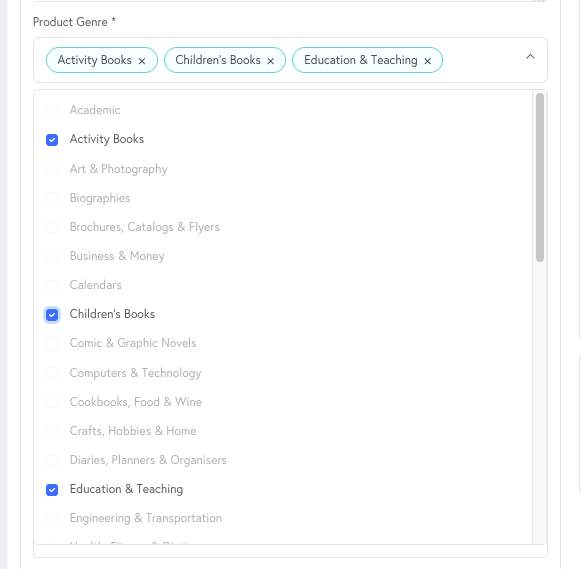
PrintLink’s genre tagging tool helps readers find your books by categorising them across multiple genres, making it easier for new and returning readers to discover and buy your work. Grouping books by genre expands your audience and boosts sales.
To add genre tags:
- Go to your Publisher Hub
- Click the ‘My Products’ tab
- Under the ‘All Products’ tab, locate the product you wish to update the genre tags for and click ‘Edit’
- Click on the ‘Product Details’ tab
- Add or remove genres - you must select a minimum of 1 and a maximum of 3.
For more information on creating a series, the carousel display, genre and product tagging, watch our video tutorial on YouTube.
Product Badges
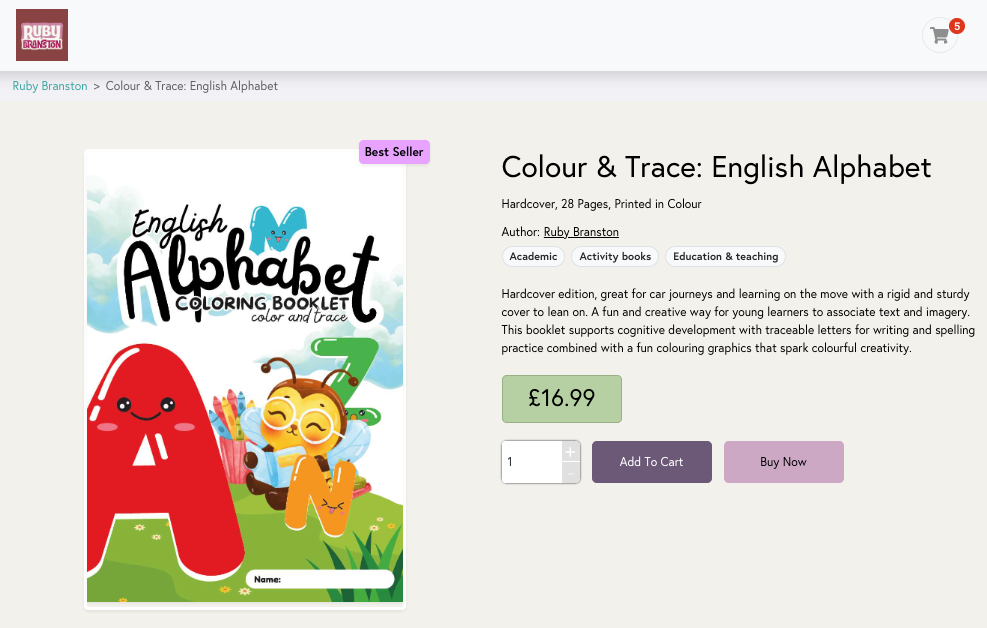
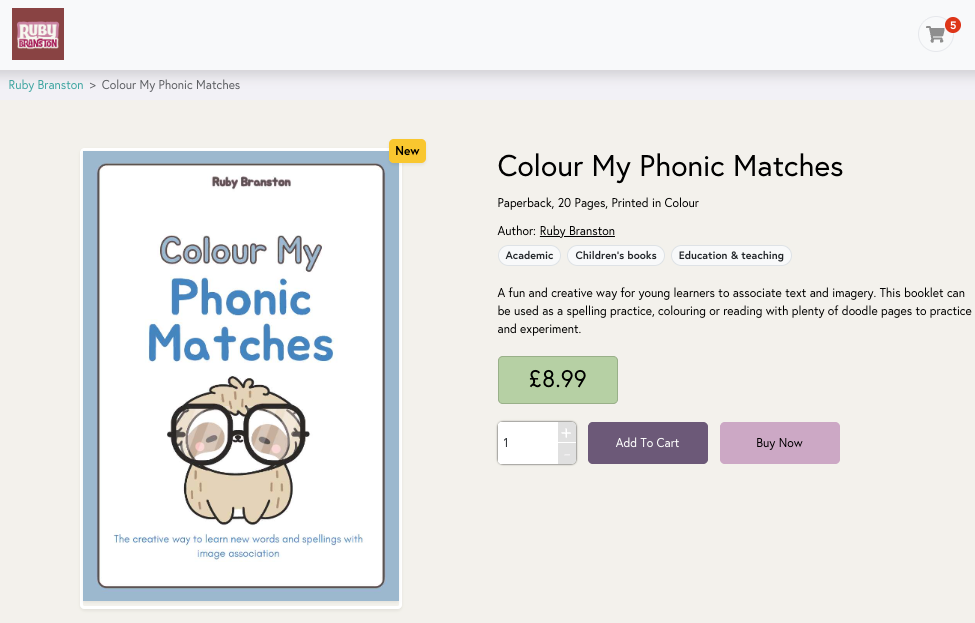
Product badges are an optional label you can add to the thumbnail display of your POD products. These help draw your customers attention to products you have recently released, are most popular or are perhaps a premium upsell such as a limited edition.
Choose from a pre-set list of badges and pick any colour. Each product can have a different badge and colour and can be edited or removed at any time.
To add a product badge:
- Go to your Publisher Hub
- Click the ‘My Products’ tab
- Under the ‘All Products’ tab, locate the product you wish to update the genre tags for and click ‘edit’
- Click on the ‘Product Details’ tab
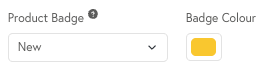
- Choose a pre-set label from the drop-down.
- Choose a colour using the RGB or pipette selector
- Click ‘Save & publish’
- To remove a badge, simply select the ‘None’ in the drop-down and click 'Save & publish’.
Carousel Display
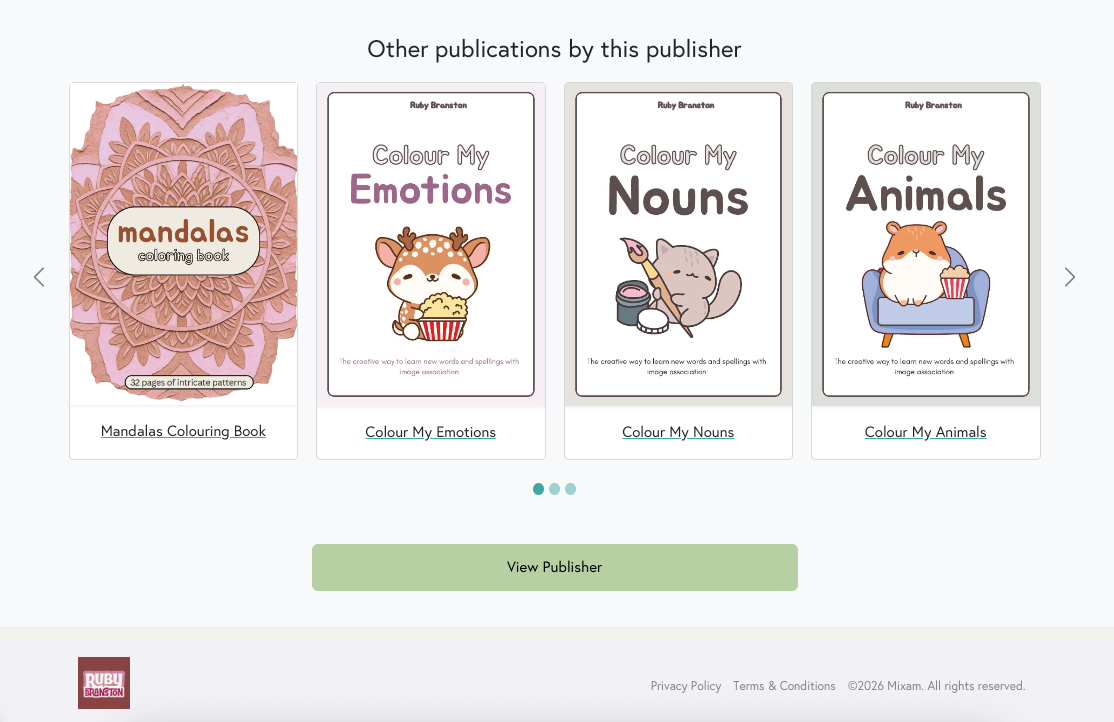
The carousel feature automatically displays all your Print-on-Demand products in one place, making it easy for readers to explore and discover more of your work when they visit one of your product links.
By showcasing multiple titles on every live product page, the carousel increases visibility, encourages engagement, and helps drive more sales - especially for authors with a book series.
Email Collection Tool
Mixam’s email collection tool helps you grow your mailing list by securely gathering customer emails at PrintLink checkout. It enables you to connect with readers, promote new releases, and share exclusive content.
To activate the email collection tool:
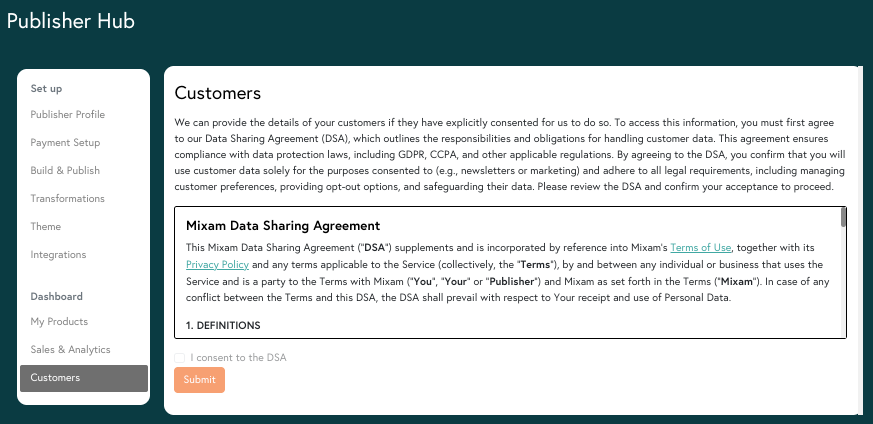
- Go to your Publisher Hub
- Click the ‘Customers’ tab
- Agree to the Data Sharing Agreement (DSA).
After opting in to the DSA, you can view the customer names and email addresses that have opted in to sharing their details in the Customers tab. Here you can also view what products they have purchased to best tailor your marketing. You can export your customer list as a .CSV file or Excel spreadsheet to use manually or to upload to your email marketing platform.
How it works for your customers:
- Add one or more PrintLink products to the cart and click 'Buy Now'.
- Enter billing details and email address.
- Click the ‘Stay in the Loop’ opt-in box at checkout to subscribe
‘Yes, I'd love to receive newsletters, special offers, and updates from *Publisher Name*. By checking this box, I understand that my contact details will be shared with these publishers for marketing purposes, and I can opt out at any time.’
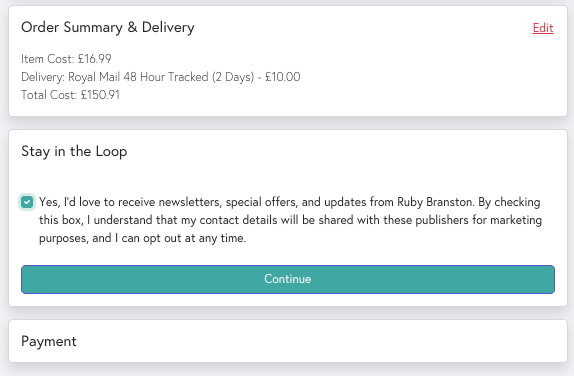
Customers have complete control over their email preferences. If they choose not to opt in, their email will remain private. For more information, watch our video tutorial on Mixam’s email collection tool on YouTube.
It is your responsibility to honour the wishes of your customer to be removed from your mailing list should they contact you requesting to opt out of communications.
Additional Note: Barcodes
Some items may include a barcode page for production tracking. It's a scannable image linked to a unique product number, enabling us to track the order through the production process. Scanning it will only display the product code, keeping all other order details private.
Now that you know how to maximise your book's potential with Mixam's marketing tools, you can revisit the Print-on-Demand Introduction.