What is Stripe?
Stripe is a widely recognised third-party payment processing service. Mixam’s print-on-demand service and Stripe’s advanced technology work together to transfer commissions to your bank account securely. Stripe account holders can also download the app for iPhone and Android to easily access and monitor payment metrics like total earnings and transactions.
You must set up your Stripe account before you can sell your POD products to ensure you can receive your commission payouts.
How To Open a Stripe Account
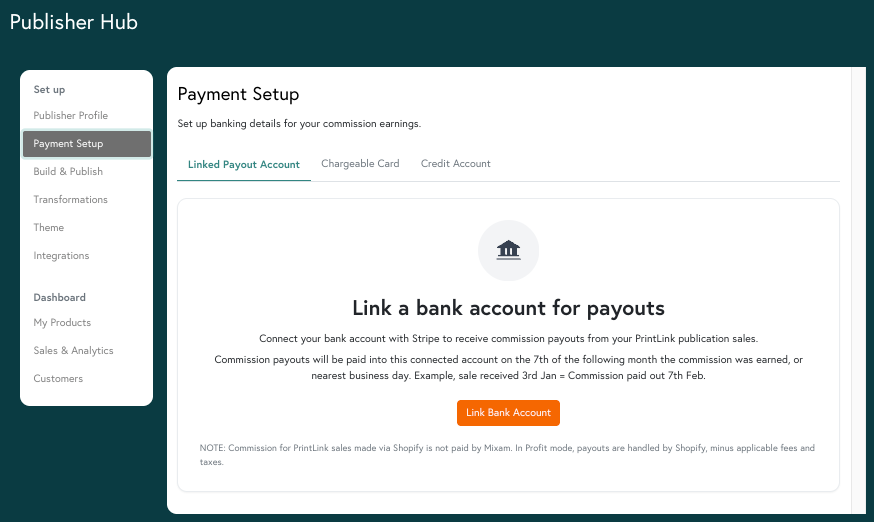
- Go to your Publisher Hub
- Click the ‘Payment Setup’ tab
- Click the ‘Linked Payout Account tab
- Click the ‘Link Bank Account’ button
- Follow the on-screen instructions to complete your registration with Stripe.
Earning Commissions
You’ll earn commissions paid out by Mixam when customers order your POD products from your unique PrintLink or embedded widget. Mixam offers four pricing strategies that apply individually to each product you create and can be changed anytime to adjust the fixed or variable commission expectation.
Commissions are paid in arrears. Profits earned from sales in one month are paid the following month.
Mixam will transfer your commissions into your nominated bank account via Stripe between 7th-9th the following month. Please allow up to 7 working days for payment to appear on your bank statement after these dates. If your commissions don’t appear on your Stripe or Bank statement after 7 working days and the 7th-9th period has passed, contact our team for assistance.
In some cases, commissions may be paid in the same month they are earned, depending on the number of days in the month, how weekends fall, and whether sales were made between the 1st and 6th.
You can view processed payments and upcoming payouts in your Stripe Dashboard or in the ‘Commission Payouts’ section of the Sales & Analytics tab.
Commissions are paid by Mixam for PrintLink sales only. For Shopify sales, commissions are paid by Shopify according to the payout schedule set in your Shopify store settings. The amount of commission you receive from Shopify depends on any additional pricing adjustments you make to the product in your Shopify store, as well as any third-party commission deducted which may vary by Shopify subscription level.
How To Update Your Bank Details
To update your bank details
- Go to your Publisher Hub
- Click the ‘Payment Setup’ tab
- Click the ‘Linked Payout Account’ tab
- Click the ‘Payment Dashboard’ button
- Log in to Stripe
- Click ‘Settings’
- Payout Details section > Select 'Edit' to update an existing payment method or 'Add bank account'
- Save your changes
You can close an account at any time. However, unless a new bank account is linked, customers will no longer be able to purchase your POD products.
To close an account
- Go to your Publisher Hub
- Click the ‘Payment Setup’ tab
- Click the ‘Linked Payout Account’ tab
- Click the ‘Payment Dashboard’ button
- Log in to Stripe
- Click ‘Settings’
- Scroll to the bottom of the page and click 'close account'
- Confirm by typing ‘Close Account’ into the prompted box, then click ‘Close Account' to confirm.
Taxes
Tax Forms
It’s your responsibility to declare your income within your tax return, as Mixam declares the payments made to publishers in its company tax filings, summarising what we paid in commissions.
Now that you know how to get set up with Stripe, you can explore Creating and Editing Products.